
How to Update NinjaTrader 8 (and Check Your Version)
To update NinjaTrader 8, get flat, save your workspaces, close NinjaTrader, then either click Install on the update notice inside the platform or run the newest installer from NinjaTrader’s site. The current version is 8.1.8.4, released October 19, 2026. Your workspaces, templates and add-ons stay in place. Should you update? Yes: recent releases fix real problems, such as NinjaTrader connection interruptions after sleep, alerts with no sound and the platform staying open after you exit, and NinjaTrader itself recommends its most recent release.
Menu names below are for NinjaTrader 8.1.x.x (checked against NinjaTrader’s help guide, October 2026). Before 8.1.5, Tools › Settings was called Tools › Options.
NinjaTrader 8 versions and what changed
NinjaTrader ships a feature release (8.1.7, 8.1.8) and then patch releases on top of it. The last number is the patch: 8.1.8.3 is the third patch of 8.1.8. NinjaTrader’s own help center now calls the platform NinjaTrader Desktop. It is the same NinjaTrader 8.
| Version | First released | Newest patch | What you notice |
|---|---|---|---|
| 8.1.8 | July 21, 2026 | 8.1.8.3 (September 29, 2026) | Single Stock Futures, a Calendar Earnings tab, stock Hot Lists and a manual lockout for prop accounts on the NinjaTrader connection. Alerts no longer go silent when Windows Media Player Legacy is off. 8.1.8.1 fixed NinjaTrader occasionally remaining running after exit and improved alert audio when many alerts fire at once. 8.1.8.3 fixed missing accounts and missing Trade Performance results for prop-provider users moving to NinjaTrader’s new connectivity. |
| 8.1.7 | May 13, 2026 | 8.1.7.2 (June 17, 2026) | The last price marker refreshes every 50 ms instead of 250 ms. Redesigned default workspaces, a new Calendar window, the Static SuperDOM free for all users, the Data Series watermark, scroll wheel zoom, multiple Playback accounts and a platform volume slider. 8.1.7.2 improved connection token renewal after long uptime, sleep and wake, and network disruptions. |
| 8.1.6 | September 25, 2025 | 8.1.6.3 (January 16, 2026) | A Show Indicators toggle that hides every indicator on a chart at once, workspace import and export from the Control Center, order entry mouse hot keys, the Pulse window and 12 or 24 hour chart time. |
| 8.1.5 | May 28, 2025 | 8.1.5.2 (July 2, 2025) | Tools › Options renamed to Tools › Settings. Indicator search with descriptions, Fair Value Gap and Ichimoku Cloud indicators, the Time Highlighter, and a warning when your Documents folder is on OneDrive. |
| 8.1.4 | December 17, 2024 | 8.1.4.2 (March 13, 2025) | Hide All Drawing Objects, Price on Volume and Delta chart types (Order Flow+), a SuperDOM depth histogram, and C# 9 in the NinjaScript Editor. |
| 8.1.3 | April 10, 2024 | 8.1.3.1 (June 25, 2024) | Update from inside the platform: NinjaTrader shows available updates at startup and in the Control Center. |
NinjaTrader lists every release with its date on its release notes page. The newest version today is 8.1.8.4.
How to check which NinjaTrader version you have
- In the Control Center, click Help › About.
- Read the version number in the About window, for example 8.1.8.4.
- Compare it with the current version, 8.1.8.4, or with NinjaTrader’s release notes page.
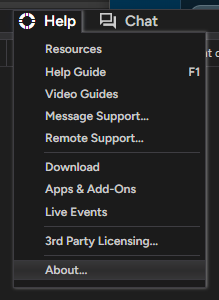
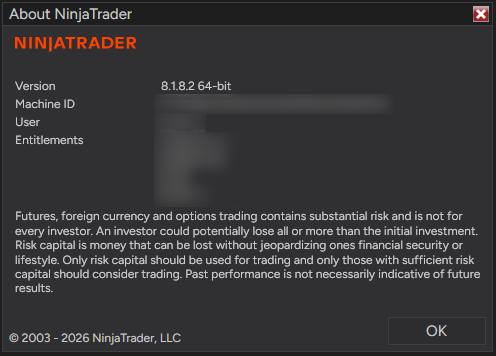
If the About window shows Safe Mode next to the version number, NinjaTrader was started in Safe Mode. Close it and open it normally before you trade.
Check the version of your Affordable Indicators software
Our products carry their own version number, separate from NinjaTrader’s. It reads as year, month, day and build: 26.9.25.1 is the first build of September 25, 2026.
- Enhanced Chart Trader: the version shows at the bottom of the Chart Trader order panel.
- Accounts Dashboard Suite and Duplicate Account Actions: the version shows at the top left of the Accounts Dashboard window.
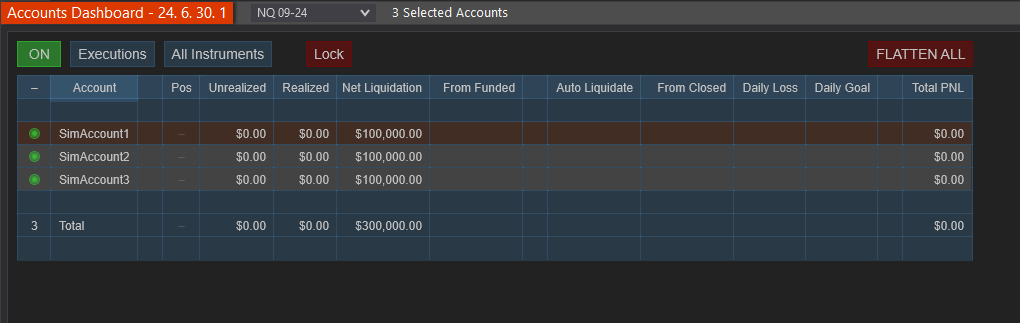
Compare it with the build listed under Downloads in your Members Area. If yours is older, download the latest build there and import it with Tools › Import › NinjaScript… in NinjaTrader. Updating NinjaTrader and updating our products are separate steps, so do both.
Should you update NinjaTrader? Our answer is yes
We recommend keeping NinjaTrader on the current release, and we do not recommend rolling back to older versions. Three reasons:
- Fixes you may already be feeling. 8.1.7.2 improved how the NinjaTrader connection renews its sign-in token, to prevent interruptions after long uptime, sleep and wake, or a network drop. 8.1.8 fixed alerts that had no sound unless Windows Media Player Legacy was enabled. 8.1.8.1 fixed NinjaTrader occasionally remaining running after you exit.
- Prop account and licensing changes. 8.1.8.3 fixes accounts that could be missing for prop-provider users moving to NinjaTrader’s new connectivity. 8.1.7.2 updated certificate handling in NinjaTrader’s vendor licensing to stay compatible with future certificate changes.
- Current is what gets supported. NinjaTrader recommends downloading the Most Recent Release unless its support team tells you otherwise. Staying current is also what we and add-on vendors support.
The one good reason to wait is timing. Do not update in the middle of a session with positions open. Update when you are flat, after the close or on a weekend, and update your add-ons at the same time.
Before you update: a short checklist
- Get flat. Close positions and cancel working orders. Running strategies stop when NinjaTrader closes, and Simulated Stop orders are held locally on your PC, so nothing manages them while the platform is closed.
- Save your workspaces. Workspaces do not save themselves. Use Workspaces › Save in the Control Center for each one you changed.
- Make a backup. Disconnect, then open Tools › Export › Backup File… and tick at least Workspaces, Templates and NinjaScript files. By default the backup is saved to
Documents\NinjaTrader 8 Backup. If you ever need it, restore with Tools › Import › Backup File… - Check your add-ons. Look on each vendor’s site for its newest build and any note about NinjaTrader versions.
- Check your PC. NinjaTrader’s minimum requirements list 64-bit Windows 11 or Windows Server 2016 or later, with Microsoft .NET Framework 4.8.
How to update NinjaTrader 8
Option 1: the update notice inside NinjaTrader
Since 8.1.3, NinjaTrader tells you about an available update when it starts and in the Control Center. Choosing Install downloads and installs the update from inside the platform, so you do not need the website. Work through the checklist above first, exactly as you would for a manual install.
If you skipped a version once and the notice never came back, 8.1.8.2 fixed that: clearing a skipped version now lets update notices appear again. You can also update at any time with the installer below.
Option 2: the installer from NinjaTrader’s site
- Close NinjaTrader completely.
- Log in to your NinjaTrader account dashboard and click Download in the lower left corner. Inside the platform, Help › Download in the Control Center also takes you to the latest version.
- Download the Most Recent Release shown in the center of the page.
- Open your Downloads folder and double-click
NinjaTrader.install.msi. - Click Next, read and accept the terms, click Install, then click Finish.
- Open NinjaTrader and confirm the new number in Help › About.
What changes and what stays: the installer replaces the NinjaTrader program. NinjaTrader states that updating does not affect your saved workspaces, templates or third-party add-ons. Those live in your Documents\NinjaTrader 8 folder, which stays in place. The backup is insurance, not a sign that the update deletes anything.
If the installer says other applications are preventing it from continuing, check Windows Task Manager for a NinjaTrader process that is still running, end it, and run the installer again.
After the update: changes that look like bugs but are not
Several releases changed the defaults for new charts while leaving saved workspaces and templates alone. That is why a fresh chart can look different from your old ones.
- Tools › Options is now Tools › Settings (8.1.5). Same settings, new name.
- Chart times show AM and PM. New charts use 12-hour time since 8.1.6. For 24-hour time, open Chart Properties (Ctrl+T), set Chart time format to 24 hour, then use Preset › Save to make it your default.
- Wicks and outlines match the candle body color on new charts since 8.1.6. Uncheck Outline and wick match body in the chart style to get the old look back.
- Large text in the middle of the chart is the Data Series watermark, on by default for new panels since 8.1.7. Delete its values in Chart Properties › Data series watermark to turn it off.
- Lines from entries to exits are trade lines, shown for all chart orders since 8.1.7. Uncheck Show trade lines under the Data Series Trades settings to hide them.
- Fonts and dark skin colors changed in 8.1.7, which updated the default font and adjusted colors on dark themes.
For more ways to tidy a chart, see our guide to cleaning up a NinjaTrader chart.
Something broke after the NinjaTrader update? Work through this
- Confirm the version. Check Help › About. If you are on an earlier patch of the current release, such as 8.1.8.0, install the newest patch first. Patches exist to fix problems found after a release.
- Restart cleanly. Close NinjaTrader, make sure it is not still running in Task Manager, and open it again. Restart Windows if it does not close.
- Test in Safe Mode. Hold Ctrl while you open NinjaTrader and keep holding it until the login screen appears, or pick NinjaTrader (Safe Mode) from the Windows Start menu. Safe Mode skips loading your workspaces, connecting on startup and loading add-ons. Connect manually, open a new chart with no custom indicators or templates, and check whether the problem is still there. Do not save a workspace while in Safe Mode.
- Problem gone in Safe Mode? An add-on or custom NinjaScript is involved. Install that add-on’s newest build and ask its vendor whether it has a build for your NinjaTrader version.
- Problem still there in Safe Mode? Report it to NinjaTrader with Help › Message Support (called Email Support in older versions), which sends your log and trace files along with your message.
- Using OneDrive? Since 8.1.5, NinjaTrader warns when your Documents folder is on OneDrive, and its installation guide says to exclude
Documents\NinjaTrader 8from cloud or local backup tools because they can create file access conflicts. Our OneDrive guide walks through the fix.
If the platform freezes rather than showing an error, see NinjaTrader freezing or not responding. If it runs but feels sluggish, see NinjaTrader slow or lagging.
Should you roll back to an older NinjaTrader version?
We do not recommend it. Older installers do exist, but NinjaTrader recommends its Most Recent Release unless its own support team tells you otherwise. Going back gives up every fix listed above, and staying current is what we and add-on vendors support. If something broke, the steps above find out whether NinjaTrader or an add-on is the cause, so you can get the fix from the right place.
Frequently asked questions
Do I need to update to the newest NinjaTrader as well?
Yes, we recommend it. Updating an add-on and updating NinjaTrader are separate steps: NinjaTrader’s update leaves third-party add-ons as they are, and an add-on update does not update NinjaTrader. Keep both on their current versions.
Will updating delete my workspaces or indicators?
No. NinjaTrader states that updating does not affect your saved workspaces, templates or third-party add-ons, which live in your Documents\NinjaTrader 8 folder. Save your workspaces and make a backup with Tools › Export › Backup File… first anyway.
Is my add-on compatible with NinjaTrader 8.1.8?
Only the add-on’s vendor can confirm that, so check their site or ask them. If an add-on misbehaves right after a NinjaTrader update, install its newest build and ask the vendor for one made for your NinjaTrader version. For our products, download the latest build from the Members Area and contact us if anything still looks off.
The issues started after the NT8 update the other day. What should I check?
Confirm your version in Help › About, restart cleanly, then open NinjaTrader in Safe Mode by holding Ctrl at launch. If the issue disappears in Safe Mode, an add-on needs attention; if it stays, report it to NinjaTrader with Help › Message Support.
If I install the previous version, will it be OK?
We do not recommend rolling back. NinjaTrader recommends its Most Recent Release unless its support team directs otherwise, and staying current is what we and add-on vendors support. Find the cause with a Safe Mode test instead, then contact the add-on vendor or NinjaTrader.
How do I know when there is a newer version?
NinjaTrader shows an update notice at startup and in the Control Center, and its release notes page lists every release with its date.
For routine upkeep such as clearing the cache, Reset DB and reading the logs, see our NinjaTrader maintenance guide. For a quick version check, see How do I know if I am on the latest version of NinjaTrader?