

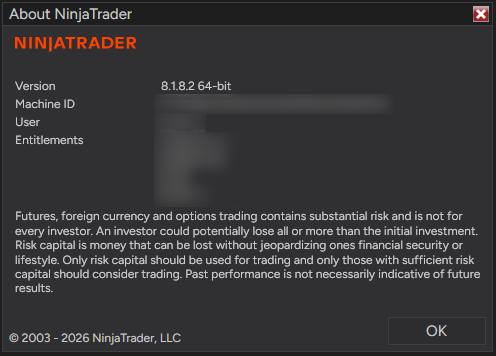
The latest version of NinjaTrader 8 is 8.1.8.4, released October 19, 2026. To see which version you have, open the Control Center and click Help › About. If your number is lower, our guide on how to update NinjaTrader 8 covers backing up and installing the update safely.
Step 1: Find Your NinjaTrader Version Number
-
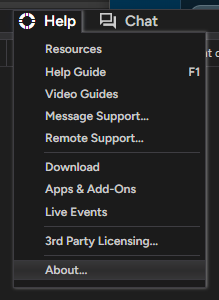
Open the Control Center in NinjaTrader.
-
Click on the Help tab at the top.
-
Select About from the drop-down menu.
-
Your current version number will be displayed in the window that appears.
Step 2: Compare with the Latest Version
-
Visit the NinjaTrader Release Notes to find the latest version.
-
Compare the version listed on NinjaTrader’s website with the version number in your “About” window.
Step 3: Update if Necessary
If you’re using an older version and need to update, follow the step-by-step instructions provided here in NinjaTrader’s support article on downloading the latest version to download and install the latest NinjaTrader version.
Keeping your NinjaTrader up to date ensures you’re benefiting from the latest features, improvements, and security enhancements.
NinjaTrader version vs our add-on version
There are two separate version numbers to keep in mind. The steps above are about NinjaTrader itself, the platform made by NinjaTrader. Our add-ons, such as the trade copier or Enhanced Chart Trader, have their own versions and are updated separately: download the newest file from NinjaScript Downloads in the Members Area and import it with Tools > Import > NinjaScript Add-On. Updating one does not update the other.
- Which version of our add-on do I have? Our add-ons show their version inside the product, and the NinjaScript Downloads page shows the newest version available, so you can compare the two. The release notes on the User Manuals page list what changed in each version.
- Compatibility. Our products run on every NinjaTrader 8.1.x.x release, including the latest.
- Your add-ons stay installed. Updating NinjaTrader keeps the add-ons you imported and does not change your licences with us.
- Pick a quiet time. Update outside market hours, then open a chart on the Sim101 account to confirm everything loads before you trade live.
- If something breaks after an update, check the Log tab in the Control Center for the exact error and send us a screenshot through the help chat.
To check our add-ons, see where to find your latest NinjaTrader software downloads.
Before you update NinjaTrader
Make a backup. In the Control Center, choose Tools > Export > Backup File. It saves your workspaces, templates and settings in one file you can restore with Tools > Import > Backup File if anything goes wrong.
Your files stay where they are. NinjaTrader keeps your workspaces, templates and imported add-ons in the NinjaTrader 8 folder in your Documents, and an update installs the platform without replacing that folder.
Release or beta?
NinjaTrader sometimes publishes beta versions before a release. For live and prop firm trading, use a released version; try a beta, if at all, on a separate computer or a simulation account. If you run NinjaTrader on more than one computer, keeping them on the same version makes problems easier to compare.
If the installer will not finish, close NinjaTrader completely first, including any copy still running in the background, then run the installer again.
After any update, open one chart and check the Log tab in the Control Center for errors before you load your full workspace; it is the quickest way to spot an add-on that needs attention.
Related help articles
- How do you Connect TradingView to the Trade Copier?
- How to Take a Screenshot of My Chart?
- What Is the Best Server Setup for Running NinjaTrader?
- How Do You Reset Frozen Orders in NinjaTrader?
- How Do I Disable Order Notification Sounds in NinjaTrader?
- Why does my NinjaTrader Machine ID keep changing?
Still need help? Browse every answer in the Help Center, or use live chat on our website and we will help you directly.
